How do I save my June’s Journey game progress?
Your game progress is automatically saved to your device as you play. However, to ensure your progress is backed up and recoverable, you have several options:
Facebook: We recommend connecting your game to a Facebook account, since this allows you to play while synced across platforms and devices, if you wish. Progress will be restored simply by logging in with your Facebook account.
See more here on how to sync via Facebook.
If you choose not to use Facebook, you can also connect your game to your Google or Apple ID.
Apple ID: To connect your game using your Apple ID, follow the instructions you find here.
Google ID: To connect your game using your Google ID, follow the instructions you find here.
Device backup: If you wish to, you can also back up your game on both Android and iOS through their standard backup methods: iCloud (iOS) or Google Backup (Android 6.0+). For example, if you would like to change to a newer device, you can restore your progress from a backup. This method does not support cross-platform syncing (moving from Android to iOS and vice versa).
For iOS:
Detailed instructions for backing up your iOS device are available from Apple here.
For Android:
- Requires Android 6.0 or higher
- Ensure that you have backups enabled on your device in Settings > Backup & Reset.
Detailed instructions for backing up your Android device are available from Google here.
How do I connect my game to Facebook or a Cloud ID?
To secure your progress and enable syncing, follow these steps:
Open June's Journey and tap the cog icon (i.e., the Settings icon) at the upper right of the main island screen.
Select the "Social".
Tap "Edit Connections".
Choose your preferred method (Facebook, Apple, or Google) and log in.
Allow the game to sync fully before closing the app.
Can I play my game across multiple devices?
Yes! To play across multiple devices—such as your phone, tablet, and desktop browser—and pick up right where you left off, you will need to connect your game to a Facebook profile. While you are not required to play connected to Facebook, doing so offers the best advantage for syncing your progress across different platforms.
Alternatively, you may choose to save your progress using your Apple ID (on iOS 13+) or Google ID (on Android). While these are excellent for backing up your data, please note that they only sync between devices on the same platform—meaning you can sync from an iPhone to an iPad, or an Android phone to an Android tablet, but not between an Apple and an Android device.
However, there are some critical things to keep in mind when syncing:
One save per device: You can have only one game save active on your device at a time. Please choose your primary save carefully.
Merging accounts: If you have played June's Journey on a mobile device and separately on a computer via Facebook, syncing them means you must choose ONE of those games to continue with. The other game will be deleted and cannot be retrieved once the sync is complete.
Important: If you ever decide to un-sync (disconnect) your mobile version from Facebook, you will have to start the game again on your device from the very beginning, as if you had never played before.
What should I check before syncing my game?
Before you link your game to Facebook or Cloud ID, run through this quick checklist to protect your progress:
Confirm your main account: Check your level and scene number on your primary device. This is the "target save" you want to keep.
Take a screenshot of your User ID: Find this 12-digit ID at the bottom of the loading screen or in Settings (cog icon) > Help menu. Support can use this identifier to restore your island.
One device, one save: Remember that you can have only one game active per device. If you try to sync a second game to the same device, it will be permanently deleted.
Check your Facebook login: Ensure the Facebook account logged in to your device's browser is the same one you want to use for the game.
Steady connection: Ensure you are on a stable Wi-Fi connection. Interruptions during the first sync can lead to errors.
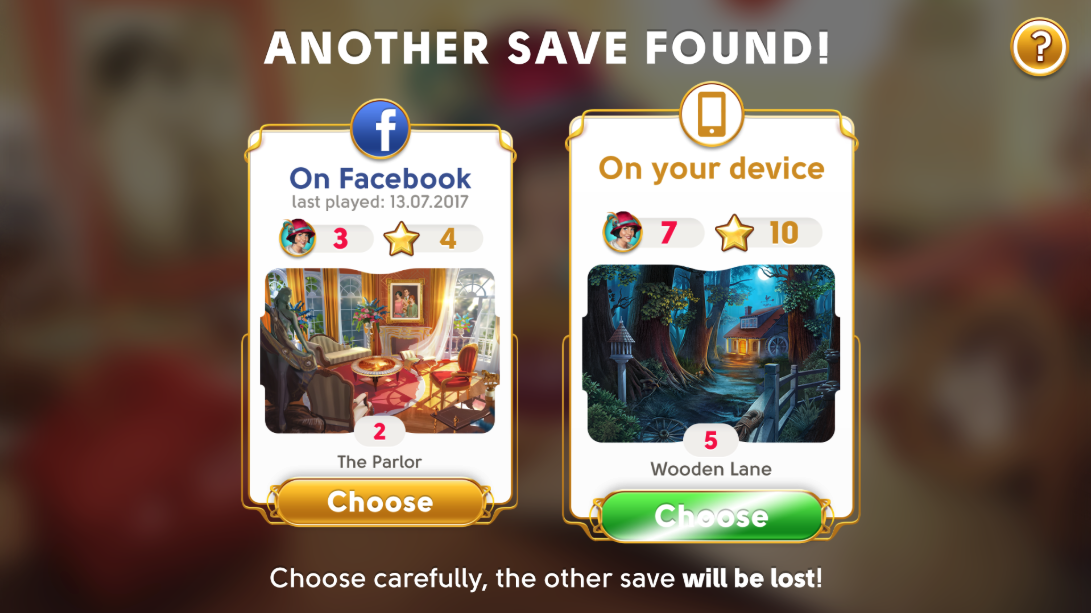
What does "Choose Your Game Save" mean?
When you log into a cloud service (like Facebook) on a new device, the game may detect two different saves: one stored locally on the device, and one stored in the cloud. You must choose carefully which one to keep.
To pick the correct save, compare the following:
Highest unlocked scene
Level and Star count
"Last played" date
Important: Once you choose a save, the other is overwritten and cannot be retrieved. Usually, you should pick the save with the highest level.
What happens if I disconnect my game from Facebook or cloud ID?
If you un-sync or disconnect your mobile game from Facebook or Cloud ID, the progress tied to that connection may be removed from the device, and you may be prompted to start from the beginning (level 1). Always ensure your progress is backed up before making changes to your connections.
Can I have more than one game account?
You cannot have more than one account per platform or social network, at any given time. For more information, please visit: https://www.wooga.com/legal/en/terms-of-service.
Keep in mind that you can only link one game save to a single Facebook or Apple/Google ID. If you have two different games on two different devices and you attempt to connect both to the same Facebook or Cloud ID account, one will permanently overwrite the other.